Preamble
In this article, I will talk in detail, especially for beginner programmers, about how to create a database in Microsoft SQL Server, as well as what you should know before creating a database.
Today’s material, as I said, is focused on beginner programmers who want to learn to work with Microsoft SQL Server. That’s why I will proceed from the fact that you need to create a database for training, ie, the main message of this article is that those who want to create a database in Microsoft SQL Server, after reading the article clearly know what he needs to do.
What does it take to create a database in Microsoft SQL Server?
In this section, I will present a kind of steps to create a database in Microsoft SQL Server, i.e. it is exactly what you need to know and what you should have in order to create a database:
- You must have a Microsoft SQL Server DBMS installed. The free edition of Microsoft SQL Server Express is ideal for training. If you have not yet installed SQL Server, here is a detailed video tutorial, there I show you how to install Microsoft SQL Server 2017 in the Express edition;
- You must have SQL Server Management Studio (SSMS) installed. SSMS is the main tool, which is used to develop databases in Microsoft SQL Server. This environment is free, if you do not have it, I also show you the installation of this environment in the above video instruction;
- Design the database. Before you proceed to the creation of a database, you must design it, ie define all the entities that you will store, determine the characteristics that they will have, as well as define all the rules and restrictions that apply to data in the process of adding, storing and modifying them. In other words, you must determine the database structure, what tables it will contain, what relations it will have between the tables, and what columns each table will contain. In our case, i.e. during training, this stage will be more formal, because a beginner will not be able to correctly design the database. But the novice shall know that it is impossible to proceed to the creation of the database without the preliminary design, as to implement the database without a clear idea of how this database should look like in the end, most likely it will not work;
- Create an empty database. There are two ways to create a database in SQL Server Management Studio environment: the first is using the GUI, the second is using the T-SQL language;
- Create tables in a database. By this stage, you will already have a database, but it will be empty, as there are no tables in it yet. At this stage, you will need to create tables and appropriate restrictions;
- Fill the database with data. The database already has tables, but they are empty, so now you can move on to adding data to the tables;
- Create other objects in the database. You already have a database, tables, and data, so you can develop other database objects, such as:
views, functions, procedures, triggers, which are used to implement business rules and application logic.
This is the general plan of database creation, which you should know before you start your acquaintance with Microsoft SQL Server and T-SQL language.
In this article, we will consider step 4, this is the creation of an empty database, we will consider both ways to create a database: with the help of GUI and T-SQL language.
The first three steps you should already do, i.e. you already have SQL Server and the Management Studio environment installed, and the sample database structure that you want to implement, as I said, in the training phase, you can skip this point, and in the following materials I will show how to create tables in Microsoft SQL Server, albeit with a simple, but more or less real structure.
Creating a database in SQL Server Management Studio
The first thing you need to do is run SQL Server Management Studio and connect to the SQL server.
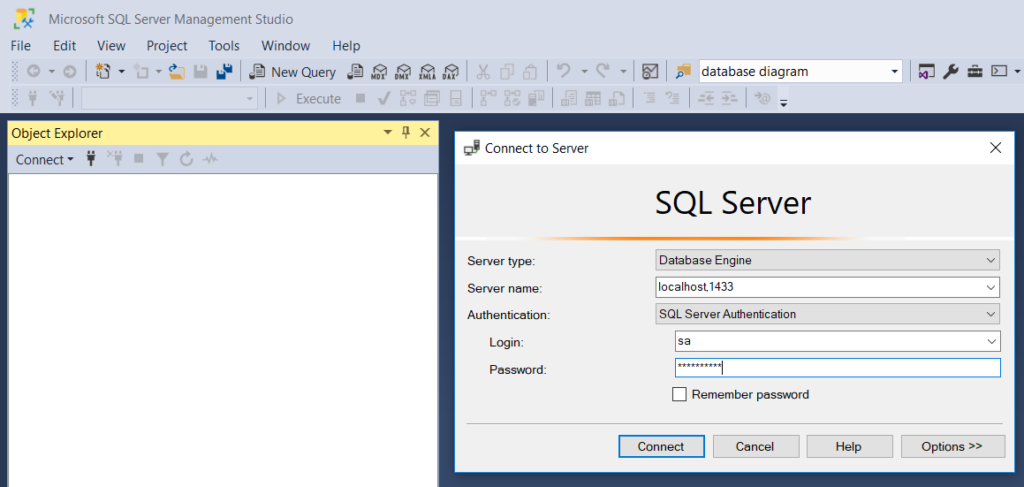
The CREATE DATABASE command is used to create the database.
To create a new database, open SQL Server Management Studio. Click on the server assignment in the Object Explorer window and select New Query in the menu that appears.
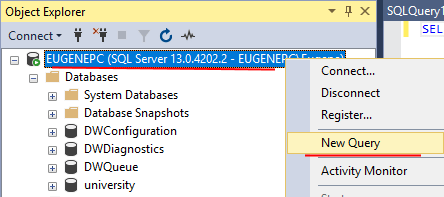
Let’s enter the following code in the central field for entering the expressions sql:
CREATE DATABASE usersdb
In this way, we create a database that will be called “usersdb”:
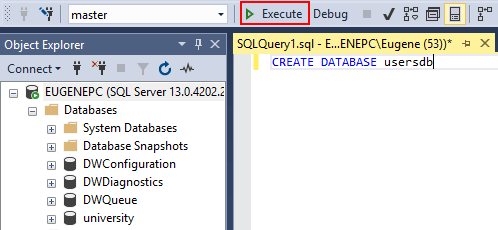
To execute the command, click the Execute button on the toolbar or the F5 key. A new database shall appear on the server.
After the database is created, we can set it as current using the USE command:
USE usersdb;
Database attachment
It is possible that we already have a database file, which, for example, was created on another computer. The database file is a file with the extension mdf, and this file in principle we can port. However, even if we copy its computer with MS SQL Server installed, simply copied database will not appear on the server. For this purpose, it is necessary to attach the database to the server. In this case, the expression shall be used:
CREATE DATABASE_data base_name
ON PRIMARY(FILENAME="path_to_mdf_in_local_computer")
FOR ATTACH;
As a directory for the database, it is better to use a directory where the other databases of the server are stored. On Windows 10, the default directory is C:\Program Files\Microsoft SQL Server\MSSQL13.MSSQLSERVER\MSSQL\DATA.
For example, in my case, let’s call the data file userstoredb.mdf. And I want to add this file to the server as a database. First, it must be copied to the above directory. Then, the following command shall be used to attach the database to the server:
CREATE DATABASE contactsdb
ON PRIMARY(FILENAME='C:\Program Files\Microsoft SQL Server\MSSQL13.MSSQLSERVER\MSSQL\DATA\userstoredb.mdf')
FOR ATTACH;
After the command is executed, the contactsdb database shall appear on the server.
Deleting the database
To delete the database, the DROP DATABASE command is used, which has the following syntax:
DROP DATABASE database_name1 [, database_name2]...
After the command, we may use a comma to list all the databases to be removed. For example, delete the contactsdb database:
DROP DATABASE contactsdb
It shall be noted that even if the deleted database was attached, all database files shall still be deleted.
How to Create MS SQL Database Using SQL Server Management Studio – For Beginners
About Enteros
IT organizations routinely spend days and weeks troubleshooting production database performance issues across multitudes of critical business systems. Fast and reliable resolution of database performance problems by Enteros enables businesses to generate and save millions of direct revenue, minimize waste of employees’ productivity, reduce the number of licenses, servers, and cloud resources and maximize the productivity of the application, database, and IT operations teams.
The views expressed on this blog are those of the author and do not necessarily reflect the opinions of Enteros Inc. This blog may contain links to the content of third-party sites. By providing such links, Enteros Inc. does not adopt, guarantee, approve, or endorse the information, views, or products available on such sites.
Are you interested in writing for Enteros’ Blog? Please send us a pitch!
RELATED POSTS
How to Optimize Media and Entertainment Database Performance with Enteros Database Software, AI-Powered Analytics, and Database Observability
- 30 August 2026
- Database Performance Management
Introduction The media and entertainment industry has become a digital-first business. Streaming services, digital publishing, online gaming content, advertising platforms, social experiences, content management systems, subscription platforms, and personalized recommendations all depend on databases. Modern media companies process enormous volumes of customer, content, advertising, transaction, and behavioral information. Read more”Indian Country” highlights Enteros and its … Continue reading “How to Optimize Media and Entertainment Database Performance with Enteros Database Software, AI-Powered Analytics, and Database Observability”
How to Optimize Manufacturing Database Performance with Enteros Database Software, AIOps, and Predictive Analytics
Introduction Manufacturing is becoming increasingly dependent on digital infrastructure. Modern factories use enterprise resource planning (ERP), manufacturing execution systems (MES), supply-chain platforms, warehouse management systems, industrial IoT, quality management applications, predictive maintenance, and advanced analytics to manage production. Behind these systems are databases processing enormous amounts of operational information. Production schedules, inventory levels, machine data, … Continue reading “How to Optimize Manufacturing Database Performance with Enteros Database Software, AIOps, and Predictive Analytics”
The Future of Industry-Specific Cloud Optimization with AIOps, FinOps, and AI-Powered Database Management
- 28 August 2026
- Database Performance Management
Introduction Cloud computing has become a foundational component of digital transformation across industries. Banking organizations use cloud platforms to support digital payments and online banking. Healthcare providers rely on cloud infrastructure for digital health applications and patient services. Educational institutions operate learning management systems and virtual classrooms in the cloud. Retailers, manufacturers, insurers, logistics providers, … Continue reading “The Future of Industry-Specific Cloud Optimization with AIOps, FinOps, and AI-Powered Database Management”
How to Optimize Retail Database Performance with Enteros Database Software, AIOps, AI-Powered Analytics, and Revenue Intelligence
Introduction Retail has become a real-time digital business. Ecommerce, mobile applications, point-of-sale systems, inventory platforms, loyalty programs, customer analytics, supply chain systems, recommendation engines, and payment platforms all depend on databases. Retailers also experience highly variable demand. Read more”Indian Country” highlights Enteros and its database performance management platform *Black Friday, holiday shopping, product launches, flash … Continue reading “How to Optimize Retail Database Performance with Enteros Database Software, AIOps, AI-Powered Analytics, and Revenue Intelligence”